


Tennis school tutorial
Sign up for a tennis lesson
What parents and players see when registering online
This article shows registration from the member's side, in the club's online interface. It helps you answer parents' questions and check your settings.
1Access the form
The member logs in and opens Sign Up for the Lesson in the left-hand menu. If they received an invitation e-mail with a registration link, they go straight there.
They first choose the Person à inscrire : lui-même ou un membre de sa famille. Si sa date de naissance manque, elle est demandée d'abord. Les cours ouverts qui correspondent à cette personne (âge, genre, cotisation) s'affichent, avec le nombre de places.
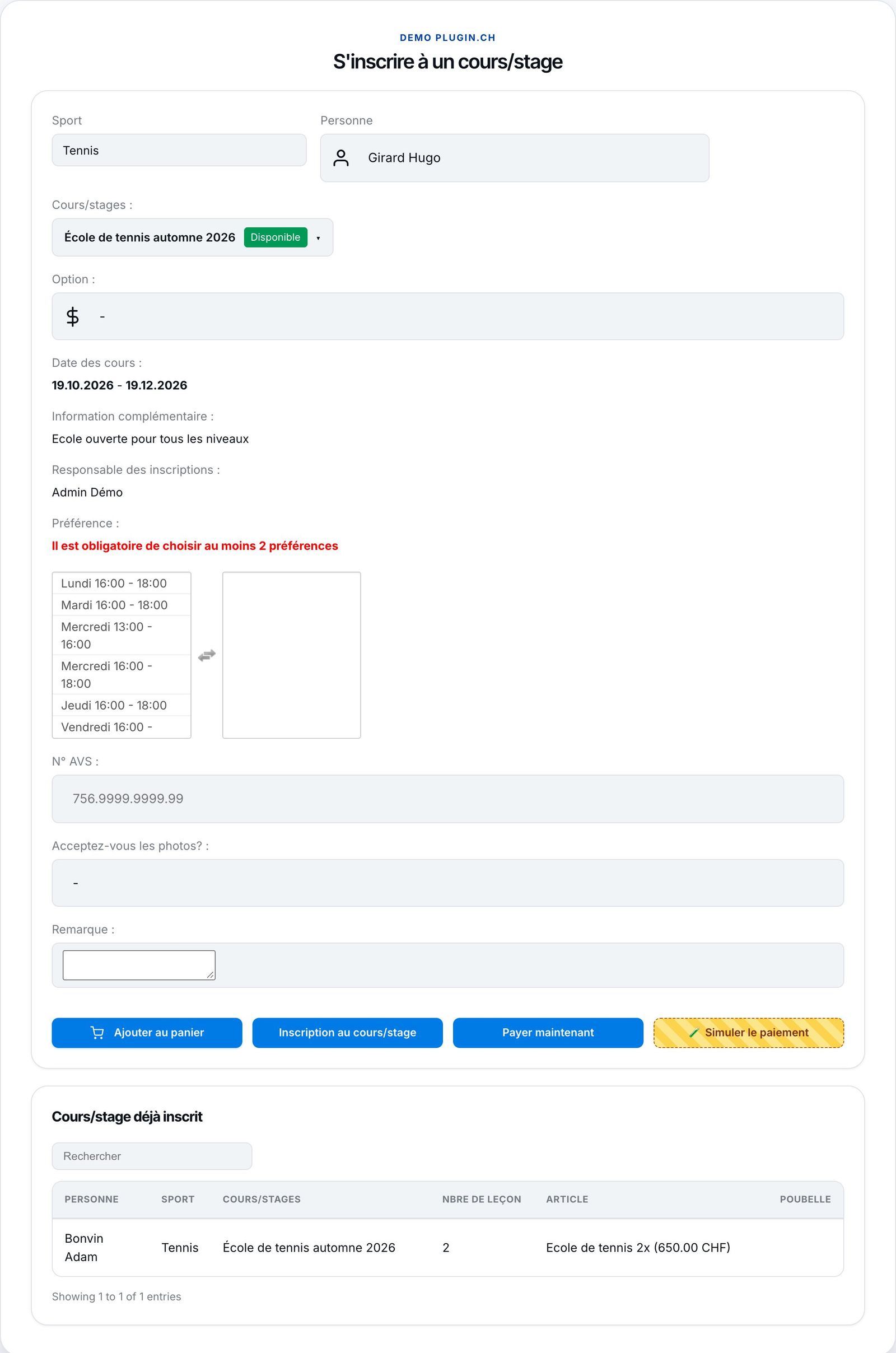
Choosing the person and the lesson.
2Fill in the form
For the chosen lesson, the member sees the Option (le tarif correspondant à son abonnement), les dates, l'information complémentaire et le responsable. Il coche ses créneaux préférés, dans son ordre de préférence (le numéro de chaque pastille indique le 1er, 2e… choix), au moins autant que le minimum demandé, puis répond aux questions, comme le numéro AVS (un numéro faux est refusé). Tant que le minimum n'est pas atteint, l'inscription est bloquée (voir Offer preferred time slots).
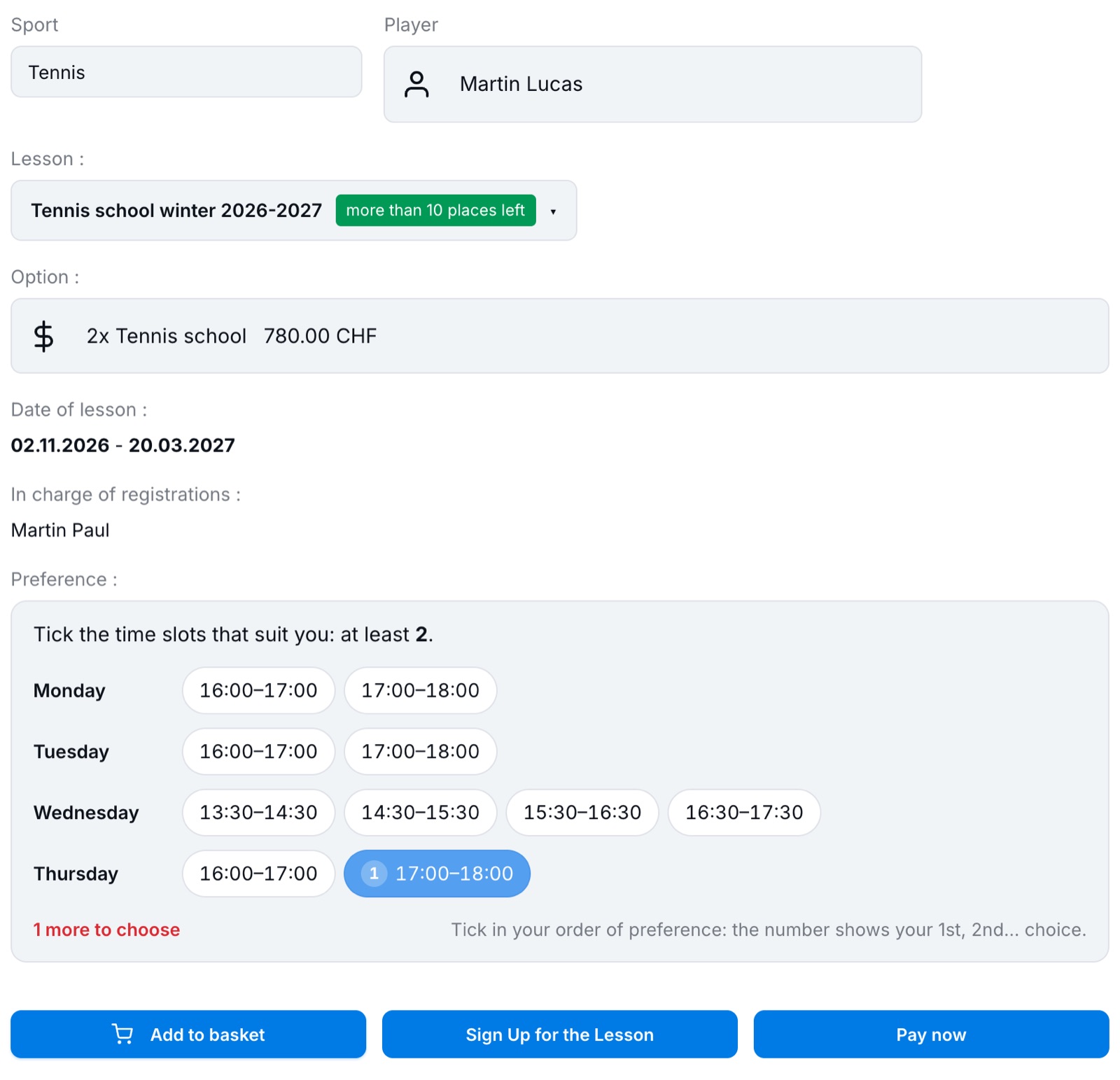
The registration form: option and preferred time slots.
Si le cours propose plusieurs tarifs (1x ou 2x par semaine), le membre choisit dans une liste : les tarifs de son abonnement et, pour une formule sans tarif de son abonnement, le tarif non-membre. Voir Prix, membres et non-membres.
3Register or add to the basket
Depending on the lesson's payment type, the member can click Sign Up for the Lesson (invoiced later by the club), Pay now (paiement en ligne, la facture est créée et soldée aussitôt) ou Add to basket.
The basket lets you register several children or several lessons in one go. It shows each registration and the total, then offers to pay online or to register and be invoiced later.
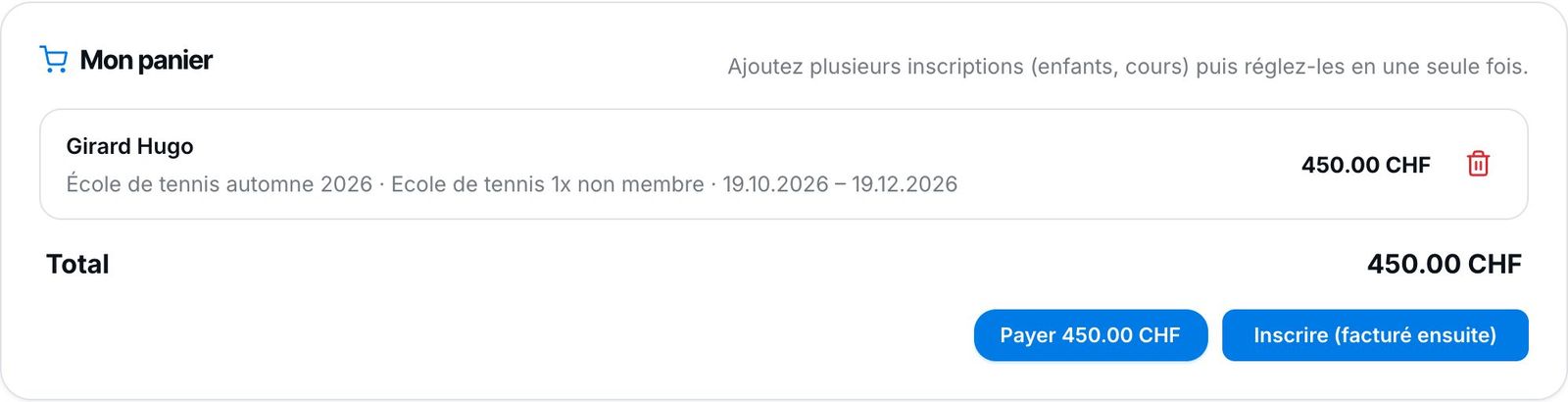
The basket with one registration.
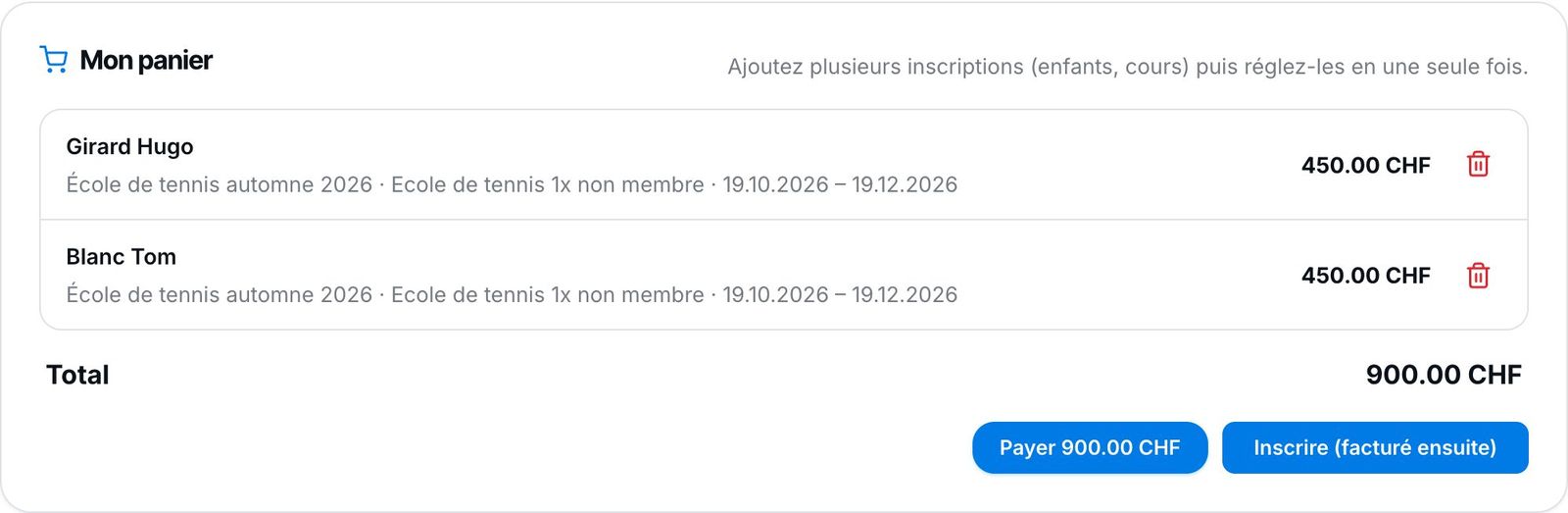
Two registrations in the basket.
4Confirmation
After confirmation, the result of each registration is shown ("Registered", invoiced by the club or paid online) and the table Already registered for course/camp is updated. On the administration side, the registrations appear in Manage registrations and, for a basket, in Grouped payments.
Le membre peut supprimer lui-même une inscription (poubelle du tableau) seulement pendant la période d'inscription, tant que l'élève n'est dans aucun groupe et que le cours n'a pas été payé ; sinon il doit s'adresser au club (voir Changements en cours de saison).
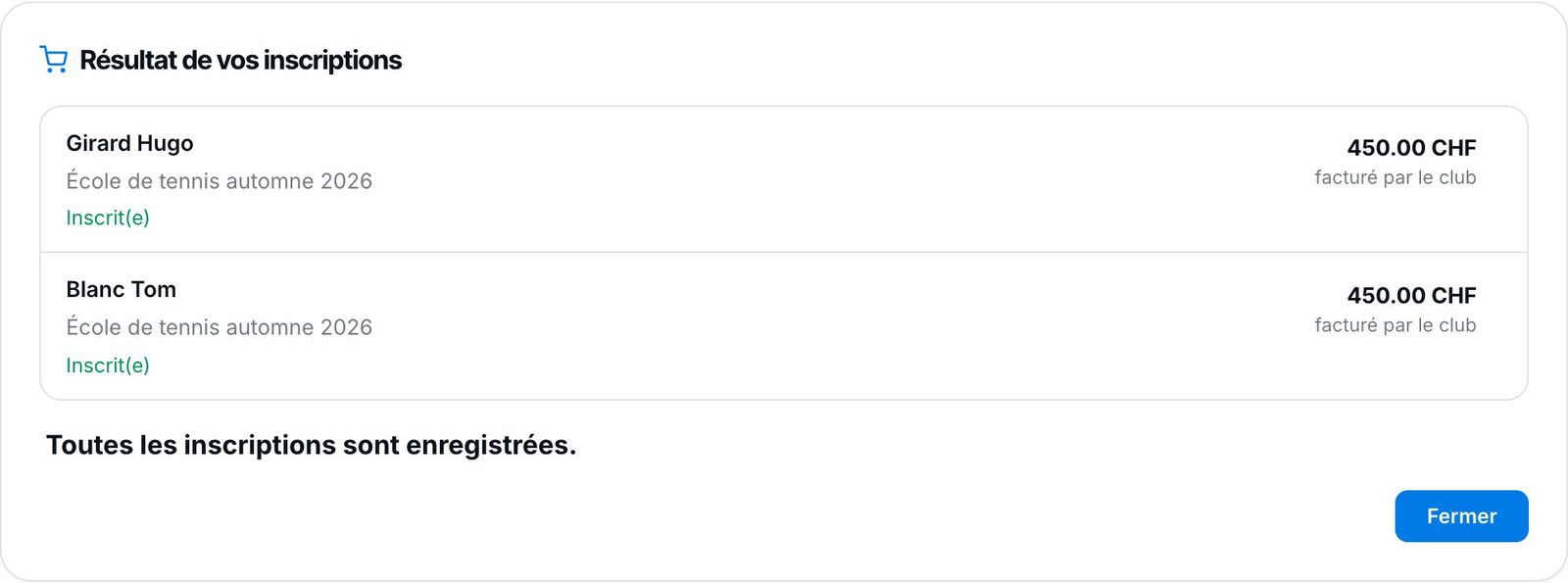
The result of the basket registrations.
Plugin.ch tutorial — Tennis school tutorial